The sync looks stuck
A sync that seems frozen almost always finishes on its own. Here is what "stuck" looks like, what SadAnalytics is doing about it in the background, and the point where it is worth asking for help.
What "stuck" looks like
On Settings, then Data Sync, a running sync shows a progress bar, a counter that starts at "0 records processed", and a status line. If the bar has not moved in several minutes, or the status line still reads "Syncing…" long after you expected it to finish, that is what a stuck-looking sync looks like.
The Settings page polls for progress every 3 seconds for up to 10 minutes. If nothing has finished by then, the status line switches to "Sync timed out. Please try again.", even though the sync itself keeps running in the background. Seeing that message is not proof the sync stopped, only that the page gave up watching it.
Self-healing: usually it fixes itself
Behind the scenes, a WordPress cron event runs every minute while a sync is active and advances it one step at a time, for up to 20 seconds per tick. This runs whether or not anyone has Settings open, so closing the browser tab does not stop a sync.
While a sync runs, a second driver works from any wp-admin page you have open and visible, for people who can manage SadAnalytics. It sends one request after another, with a half-second gap, to push the same sync forward faster, so progress on screen is usually quicker than the background tick alone. When the tab is hidden, it falls back to WordPress's heartbeat, one request at a time.
If a sync has gone completely silent, no heartbeat at all, for two hours, SadAnalytics treats it as abandoned. The next sync to start marks it failed, and its status reads "Sync failed: The sync stalled and a newer sync replaced it." A run that lost its place partway through is stopped, and reads "Sync failed: The sync lost its place and was stopped." Both happen on their own; you do not need to do anything for either.
The Cancel button
The Cancel sync button shows as soon as a sync starts, but stays grayed out until SadAnalytics has confirmed the running job's ID, so it can never accidentally cancel a different, older run. Clicking it changes its label to "Cancelling…" while the request is in flight.
Cancelling stops every provider being synced in that run, not just one. On success the status line reads "Sync was cancelled."; if the request fails outright you will see "Failed to cancel sync job."
Cancel is the right move if you changed your mind about a large historical import, or if you are certain the run is not doing anything useful. It is not needed to "unstick" a sync that is simply slow; the self-healing tick will keep pushing that forward on its own.

Action Scheduler's pending actions
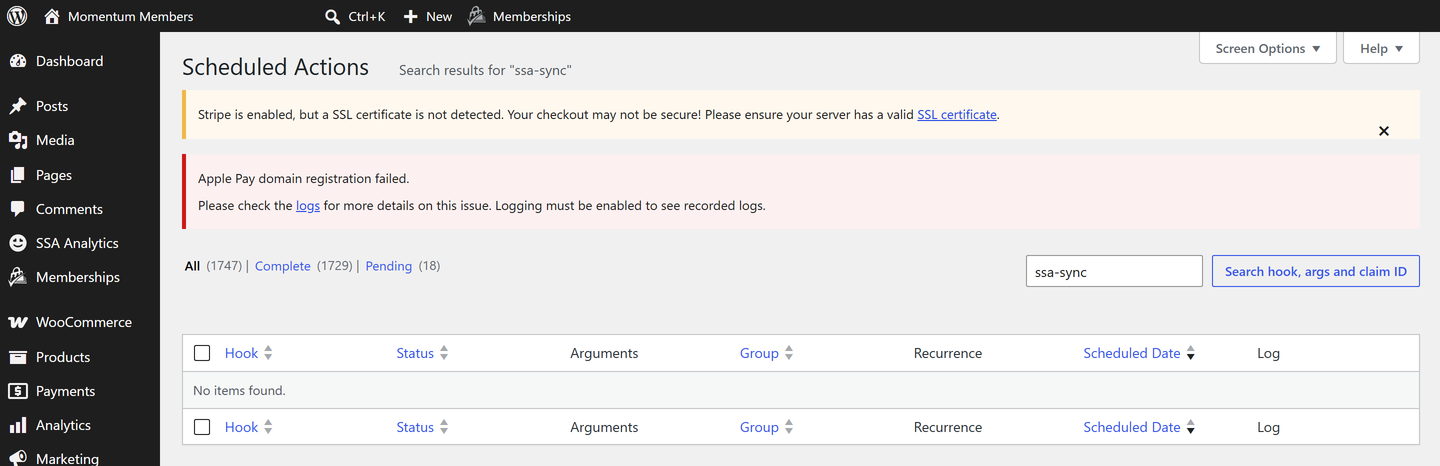
SadAnalytics runs every sync step through a bundled library called Action Scheduler, which keeps its own list under Tools, then Scheduled Actions. Filtering that list to the group sadanalytics-sync shows exactly what SadAnalytics has queued: one row per batch of customers, subscriptions, payments or invoices being fetched, and one row per stage (detect, link, metrics, cohorts, history, match) once fetching is done.
A handful of pending rows in that group, changing every minute or so, is normal while a sync runs. A large backlog of rows that never seems to shrink, or rows stuck in a "failed" state, is a sign something deeper is wrong and worth a support report.
When to ask for help
A red banner reading "SadAnalytics could not authenticate with your payment provider. Your API key may have been revoked or is missing a permission. Reconnect on the Payment Providers settings tab to resume syncing." is not a stuck sync; it is a real failure. Reconnect on the Payment Providers tab and syncing resumes.
- The progress bar has not moved for well over an hour, with no reconnect banner and no pending rows in Scheduled Actions.
- The same sync fails repeatedly with the same error after reconnecting.
- The Diagnostics tab is filling up with the same error message every time you try.
If any of those apply, see where to get help for what to include in a report.