The setup wizard, step by step
After you activate SadAnalytics, its dashboard first shows a Freemius opt-in screen. The setup wizard opens once you've answered it, with Allow & Continue or Skip. It walks you through connecting Stripe, two optional preferences, and starting your first sync.
Step 1: Connect Stripe
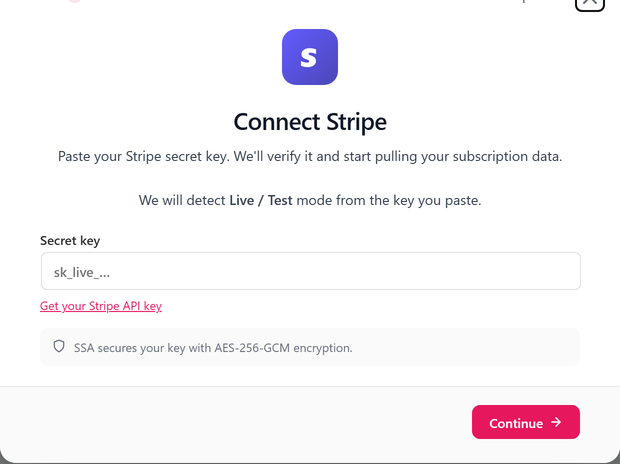
This is always the first step, and there is no Back button on it. Paste your Secret key and SadAnalytics detects Test mode or Live mode from its prefix as you type, then checks the key against Stripe before saving it (encrypted) when you click Continue.
| Field | What it does | Default |
|---|---|---|
| Secret key | Your Stripe secret (or restricted) key. SadAnalytics needs Read on customers, subscriptions, charges, invoices and prices. Products is optional; it gives plan names. On screen: "sk_live_…" Must match the shape of a Stripe key: sk_test_, sk_live_, rk_test_, or rk_live_ followed by 20 or more characters. | (empty) |
If you use a restricted key and it is missing a required permission, SadAnalytics tells you exactly which resource to grant read access to rather than a generic failure. Saving is refused if your site is missing the WordPress security keys SadAnalytics needs to encrypt the key; the error names them.
Step 2: Which roles are trial members? (optional)
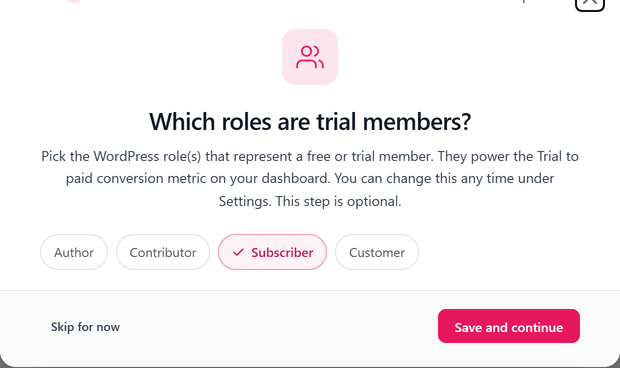
This step only appears if your site has at least one WordPress role that is not an administrative one. Under Which roles are trial members?, tick the chip for each role that represents a free or trial member on your site; these roles power the trial-to-paid conversion metric.
| Field | What it does | Default |
|---|---|---|
| Role chips | Which WordPress role(s) count as a trial or free member. A fresh install pre-ticks Subscriber if that role exists and qualifies. Only roles without administrative capabilities are offered; leaving every chip unticked is allowed. | Subscriber (when eligible) |
Step 3: Set a monthly revenue target (optional)
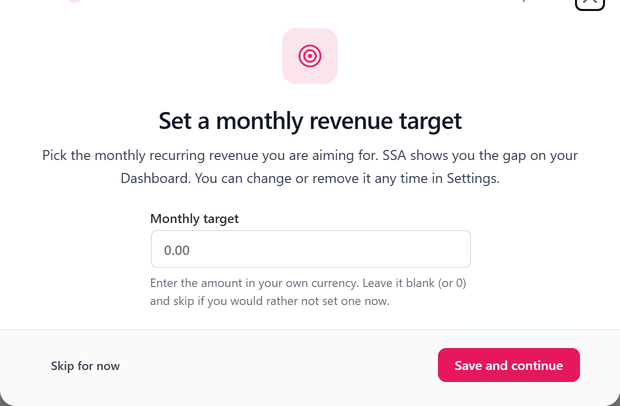
Type a Monthly target if you have one in mind. SadAnalytics shows the gap between this figure and your live MRR on the Dashboard; you can change or clear it any time from Settings or from the Dashboard itself.
| Field | What it does | Default |
|---|---|---|
| Monthly target | The monthly recurring revenue you are aiming for, in your own currency's major units. On screen: "Enter the amount in your own currency. Leave it blank (or 0) and skip if you would rather not set one now." Digits with optional comma thousands separators and an optional decimal point, for example 1500 or 1,500.00. Leaving it blank, or entering 0, means no target. | (empty, meaning no target) |
Step 4: Initial sync
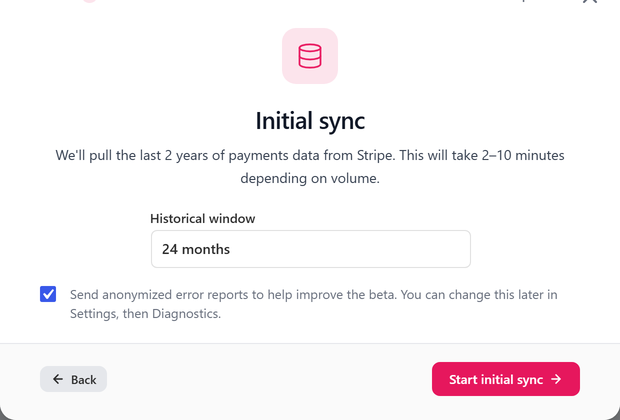
The last step names how much history SadAnalytics is about to pull from Stripe and lets you change it before starting. The wording nearby says this takes "2–10 minutes depending on volume"; that figure is fixed copy, not a live estimate, so treat it as a rough guide.
| Field | What it does | Default |
|---|---|---|
| Historical window | How far back this first sync reaches for customers, charges and invoices. Subscriptions are always imported in full no matter what you choose here. One of 3, 6, 12, 18 or 24 months. | 24 months |
This step does not ask about error reporting. That stays off unless you turn it on yourself in Settings, Diagnostics.
Clicking Start initial sync saves these choices first, then starts a full sync for every connected provider and switches this step to a progress view: a spinner, a status line, a records counter and a percentage. You can click Close & open dashboard at any point; the sync keeps running in the background and the header's sync pill picks up where the wizard left off.
Skipping and coming back
On the two optional steps, Skip for now marks that step handled and moves you on without closing the wizard. Closing the wizard itself, whether with the × button, the dark backdrop, or the Escape key, only remembers not to auto-open it again for the rest of your current login; it does not mark anything as done.
That matters because nothing about your progress is stored as a simple checklist. SadAnalytics works out which steps are finished by looking at your site directly: is a Stripe key saved and working, has a sync actually completed, and were the two optional steps saved or skipped. So the wizard reopens automatically on your next login until every step is done, however many times you dismissed it before.
Until every step is done, a pill-shaped Setup Wizard button stays in the header, showing a caption like "2 of 4 steps done". It reopens the wizard on whichever step you left off at, even after you dismissed it earlier. Once setup is finished, the button goes away.
What the wizard does not ask
The wizard never asks for a license key. Its steps are connecting Stripe, the two optional preferences and the first sync, and nothing else.
It also never offers a choice of payment provider. SadAnalytics connects to Stripe only. Importing from Paid Memberships Pro and recording payments by hand will come with SadAnalytics Pro, which is coming soon. Want to know when? Email [email protected].