Install and activate
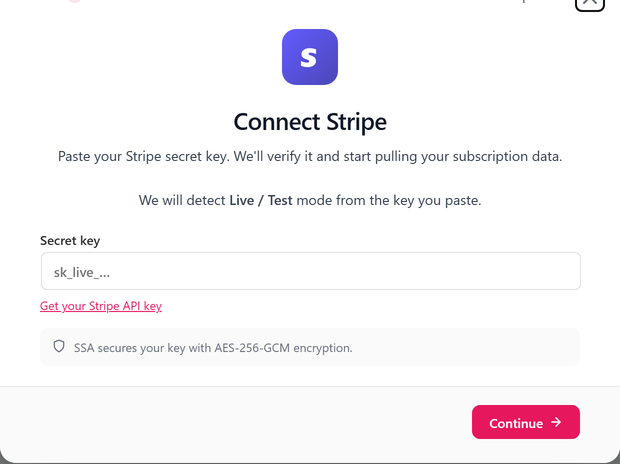
SadAnalytics installs like any WordPress plugin. Activation creates its tables, then SadAnalytics asks one opt-in question and opens the setup wizard.
Requirements
- WordPress 6.0 or newer, on PHP 7.4 or newer.
- MySQL 5.7 or newer, or MariaDB 10.2 or newer. The reports use JSON functions the older versions lack.
- A single-site WordPress install. Multisite is not supported.
- A Stripe account, and a key with read access to your data (Connect Stripe > Create a restricted key shows how).
Installing it (once it's on WordPress.org)
In wp-admin, go to Plugins, Add New Plugin, and search for Sad Subscription Analytics.
Click Install Now, then Activate.
What activation does
Activation creates the plugin's database tables and records its database version, and later updates keep that structure up to date automatically. Provider data you have already synced is not re-derived by an update, so an accuracy fix in a later version applies to newly synced data.
Right after activation SadAnalytics opens its dashboard with a screen headed "Thanks for installing Sad Subscription Analytics". Click Allow & Continue to share basic site details with Freemius, or Skip. SadAnalytics works the same either way (see What leaves your site for what an opt-in shares). The setup wizard opens once you've answered.
Deactivating keeps every table and setting. Remove all SadAnalytics data when the plugin is deleted is off by default in Diagnostics, so deleting the plugin keeps your data too unless you turn that on (see Deactivate versus delete).