Settings: Diagnostics
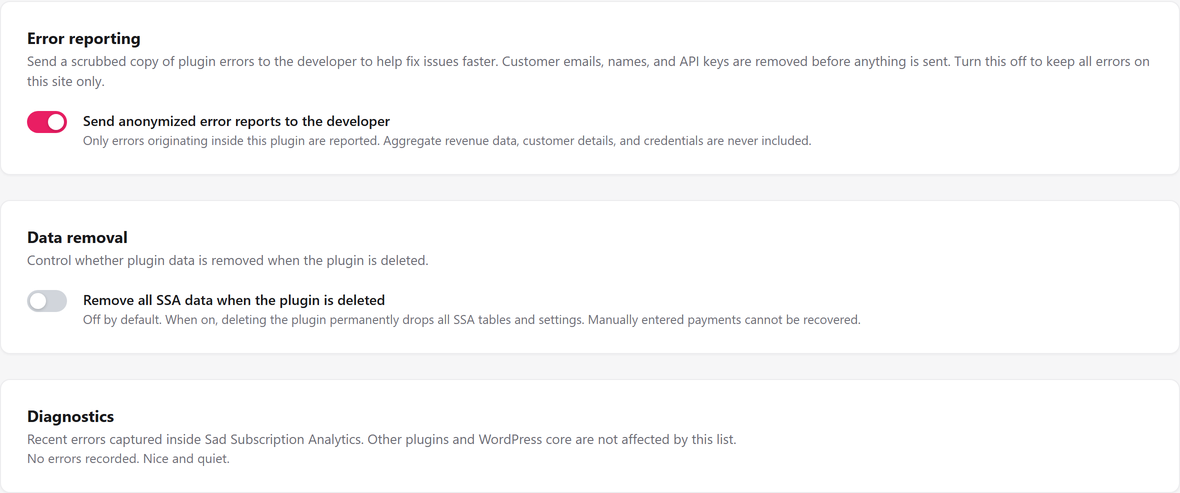
The Diagnostics tab has three cards: an opt-in toggle to send scrubbed error reports to the developer, a switch controlling whether deleting the plugin also deletes your data, and a table of the most recent errors SadAnalytics itself has raised. A site that opted in to Freemius sees a fourth card for its account.
Where to find it
Go to Settings → Diagnostics, at admin.php?page=sad-subscription-analytics-settings&tab=diagnostics. The cards are, in order: Error reporting, Data removal, and Diagnostics (the error table).
If this site opted in to Freemius, a fourth card about your account sits between Data removal and Diagnostics. Its Open account page button opens your Freemius account page, which shows your account details (and your SadAnalytics Pro license, once Pro is out) and lets you disconnect this site. To pause or resume sharing, use the Opt Out or Opt In link under Sad Subscription Analytics on the Plugins page. A site that skipped the opt-in has no account page, so it does not see this card.
Error reporting
| Field | What it does | Default |
|---|---|---|
| Send error reports to the developer | An opt-in toggle. When on, SadAnalytics sends a scrubbed copy of its own PHP errors to the developer's error tracker (Sentry) to help fix bugs faster. Errors keep landing in the Diagnostics table below either way. On screen: "A report holds the error message, where in the plugin it happened, what the plugin was doing, and the plugin and PHP versions. It can quote an ID from your payment provider, such as a customer or subscription ID." Boolean. Sending only happens at all when a developer-configured reporting address is present in the plugin build, which it is today. | Off. The setup wizard does not ask about it; only this toggle turns it on. |
What each report actually contains: a random event ID, a UTC timestamp, the platform (php), a severity level, the plugin version, the error message, a tag carrying your PHP version, and where in the code it happened (file, line, context such as which sync stage or AJAX action was running). Your site's name and your WordPress user are not part of the report. The request itself carries your site's web address, which WordPress adds to its outgoing requests by default.
Before anything is sent, SadAnalytics scrubs it: any email address becomes [redacted-email], a Stripe secret or restricted key (even a masked one) becomes [redacted-key], your Stripe account ID becomes [redacted-account], and your server's WordPress and plugin folder paths are cut out of the text. Any field whose name contains email, password, secret, token, api_key, authorization, phone, address, or a name such as first_name, display_name or username is replaced with [redacted]. The send itself is a short, fire-and-forget request with a 5-second timeout; it never blocks the site and a failure to send is never shown to you.
Data removal
| Field | What it does | Default |
|---|---|---|
| Remove all SadAnalytics data when the plugin is deleted | Controls whether deleting the plugin from the Plugins screen also removes everything SadAnalytics stored: every SadAnalytics database table, every SadAnalytics-prefixed option, transient and per-user preference, and its scheduled background jobs. On screen: "Off by default. When on, deleting the plugin permanently drops all SadAnalytics tables and settings. Manually entered payments cannot be recovered." Boolean. | Off. |
The Diagnostics table
When empty it reads No errors recorded. Nice and quiet. Otherwise a table lists up to the 100 most recently seen error groups, newest activity first, with these columns.
| Column | What it shows |
|---|---|
| Level | error, warning or notice. |
| Message | The scrubbed error text, same scrubbing rules as the opt-in report above. |
| Location | The file (relative to the plugin folder) and line where it happened, when known. |
| Count | How many times this exact error, at this exact location, has recurred. |
| Last seen | When it most recently happened. |
Errors with the same level, file, line and message share one row: a repeat only bumps the Count and Last seen rather than adding a new line. This grouping is unconditional, so it records whether or not Error reporting is switched on above; only PHP errors and exceptions raised inside SadAnalytics' own files are captured here, never another plugin or WordPress core. A Clear all errors button under the table deletes every row on this site with no confirmation prompt; it has no effect on anything already sent to the developer.
What saving does
Both toggles on this tab, Send error reports to the developer and Remove all SadAnalytics data, are saved by the sticky Save changes bar shared across the Settings page. Clear all errors is a separate, immediate action: it deletes the stored error rows the moment you press it, whether or not you have unsaved changes elsewhere on the page.