Settings: Data Sync
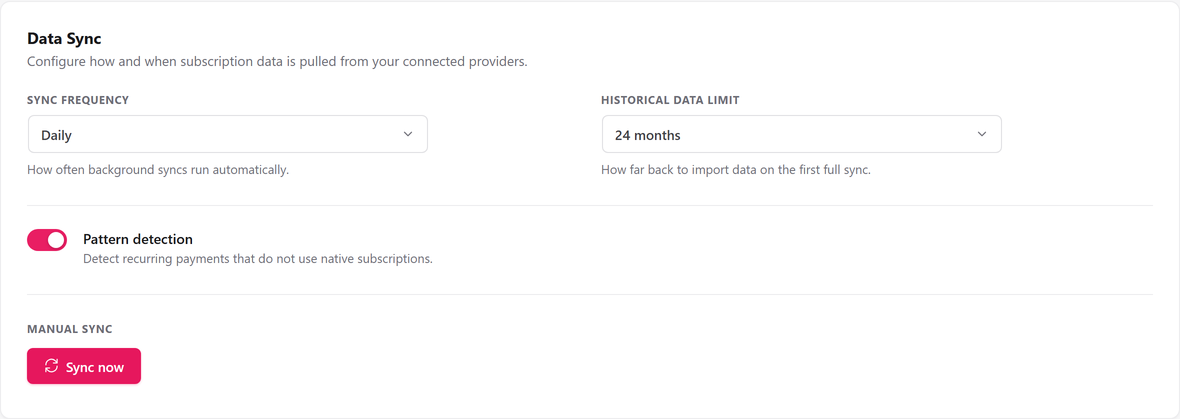
The Data Sync tab controls how SadAnalytics pulls data from your connected provider: how often, how far back, and whether it looks for recurring payments that are not native subscriptions. A Sync now button below the fields runs one on demand.
Where to find it
Go to Settings → Data Sync, at admin.php?page=sad-subscription-analytics-settings&tab=sync.
Data Sync fields
| Field | What it does | Default |
|---|---|---|
| Sync frequency | How often the background sync runs on its own, without you pressing anything. On screen: "How often background syncs run automatically." One of Every 6 hours, Every 12 hours, Daily, or Manual; an unrecognized value is stored as Daily. Changing it reschedules the background job immediately, starting one full interval from now, never right away. Whatever you pick, Manual included, SadAnalytics also runs a full re-sync every 30 days, to pick up older changes the regular syncs can miss. | Daily. |
| Historical data limit | How far back a full sync reaches for customers, charges and invoices. Subscriptions are always fetched in full regardless of this setting, so an active subscriber older than the window still counts. On screen: "How far back to import data on the first full sync." One of 3, 6, 12, 18 or 24 months; an unrecognized value is stored as 24. This bounds every full sync, not only the first one, so raising the limit and pressing Sync now re-imports the wider window. | 24 months. |
| Pattern detection | Whether SadAnalytics looks for recurring payments that do not use a native subscription object, so they can be counted as detected subscriptions. On screen: "Detect recurring payments that do not use native subscriptions." Boolean. Turning it off stops new detection on the next sync; it does not delete subscriptions already detected. | On. |
Sync now and Cancel sync
Sync now is enabled once a payment provider is connected. It starts a full sync (bounded by the Historical data limit above), and a progress bar tracks it: a counter of records processed, a fill bar, and a status line that moves through Syncing, then Finalizing sync (calculating metrics) as SadAnalytics recalculates your reports, then Sync complete.
The sync keeps running even if you navigate away or close the tab: a background driver on every admin page, WordPress's own cron, and Action Scheduler all keep it moving. Cancel sync becomes available once the job has started and stops every step of that run.

What saving does
Sync frequency and Historical data limit are saved by the sticky Save changes bar shared across the whole Settings page, which posts only the fields you changed. Sync now and Cancel sync are separate immediate actions and do not wait for Save changes.
Saving a changed Sync frequency reschedules the background sync at once. Nothing about the Sync frequency or Historical data limit fields triggers a purge; the only settings-page purge is the exempted-accounts one covered on the General tab.