Create a restricted key
A restricted key can only do what you allow it to do. This walks through creating a read-only one in the Stripe Dashboard, then connecting it to SadAnalytics.
Create the key in Stripe
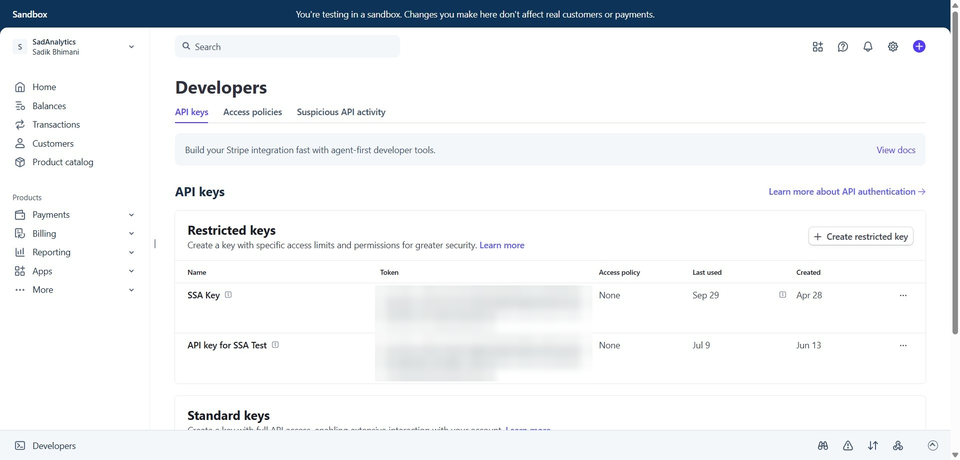
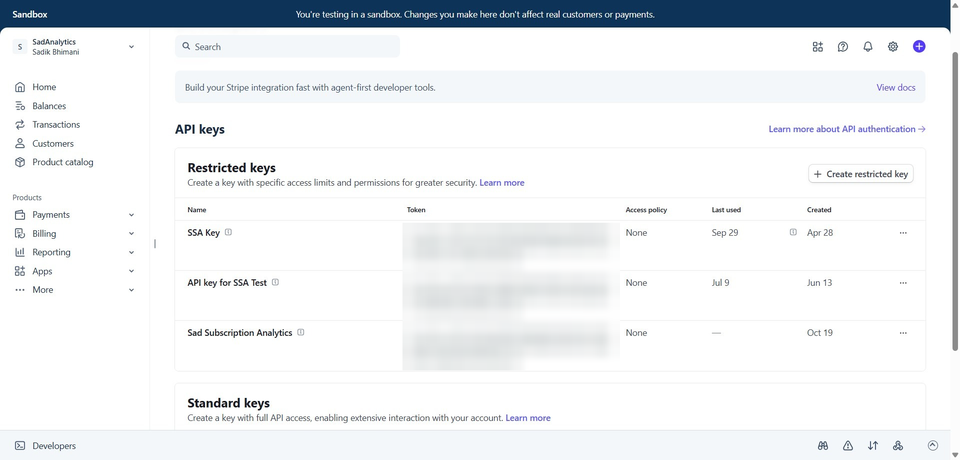
In the Stripe Dashboard, go to Developers > API keys and click Create restricted key.
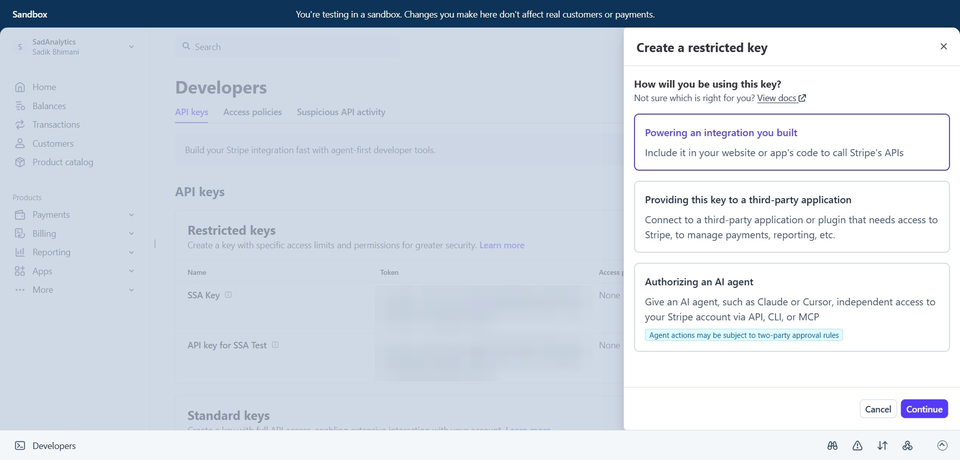
Stripe asks How will you be using this key? Choose Powering an integration you built, even though SadAnalytics is a plugin, then click Continue. That is the choice that leads to the read-only template in the next step.
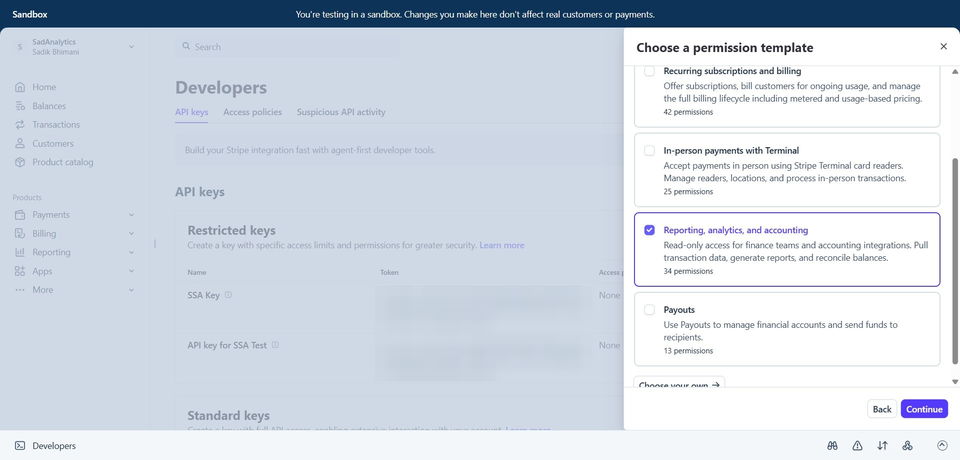
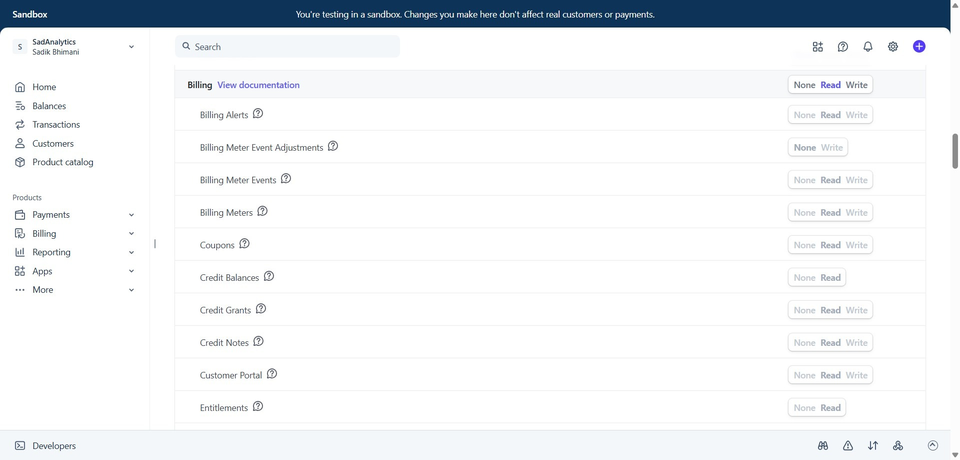
Under Choose a permission template, select Reporting, analytics, and accounting, then click Continue. It gives the key read-only access, which covers everything SadAnalytics reads.
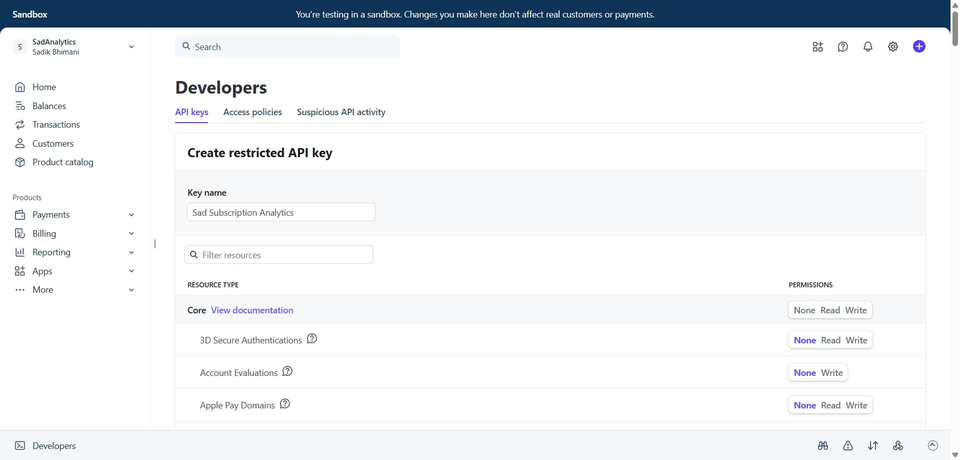
Give the key a name you will recognize, such as "Sad Subscription Analytics". The template has already set the permissions, so leave them as they are. Scroll to the bottom, click Create key, and enter the verification code if Stripe asks for one.
Copy the key. In a sandbox it stays in the Restricted keys list, so you can come back to it at any time. In live mode Stripe shows a key you created only once, in the window that opens after you create it, so copy it there before you close that window.
Paste it into SadAnalytics
Open the setup wizard (it opens on its own after you activate SadAnalytics and answer the opt-in screen) or go to Settings > Payment Providers. Paste the key into Secret key (wizard) or Secret API Key (Settings). In the wizard, SadAnalytics reads the rk_test_ / rk_live_ prefix and picks Test or Live for you. In Settings, pick the matching Environment first; a key that does not match it is refused.
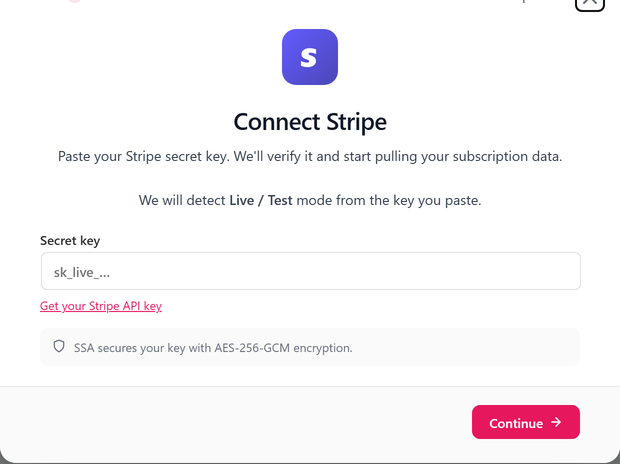
Before saving anything, SadAnalytics checks the key by listing one record from each of Customers, Subscriptions, Charges, Invoices and Prices. If a permission is missing, the error names exactly which one, so you can go back to Stripe and grant it rather than guessing. A missing Prices permission is named "Products and prices (read)" in that message.