Settings: Access
The Access tab is where you will choose who may open SadAnalytics. Choosing comes with SadAnalytics Pro. Until then every WordPress administrator can see SadAnalytics, and nobody else can.
Where to find it, and what it shows today
Go to Settings → Access, at admin.php?page=sad-subscription-analytics-settings&tab=access. Only administrators can open it.
Without SadAnalytics Pro, the tab shows a locked card, Who can see SadAnalytics, which reads: Choosing who can see SadAnalytics is a Pro feature. Right now every administrator can see it and nobody else can. SadAnalytics Pro lets you pick the people who can, and give people who are not administrators view-only access. Its Upgrade to SadAnalytics Pro button links to the pricing page on sadanalytics.com.
Who can view versus who can manage (SadAnalytics Pro, coming soon)
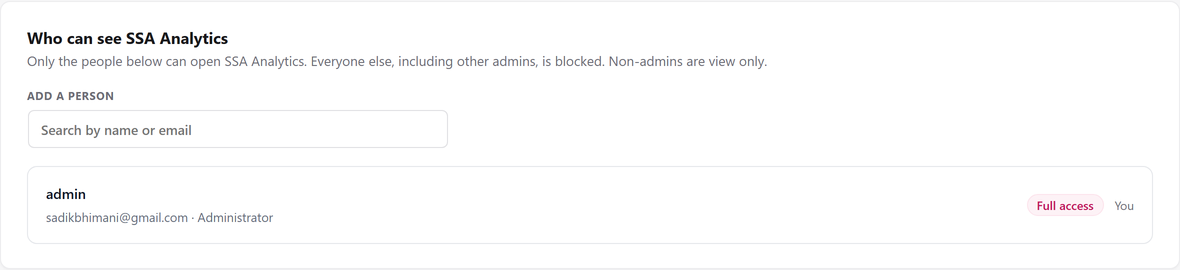
With SadAnalytics Pro, the tab holds one list of people. Only the people on it can open SadAnalytics; everyone else is blocked, including other administrators. Being on the list grants View only: the Dashboard, every report, and reading data. Being on the list AND holding full WordPress Administrator rights grants Full access as well: Settings, connecting or disconnecting a payment provider, running a sync, and every other write. Each row on the tab shows a pill computed live from the person's current WordPress role, so promoting a listed Editor to Administrator flips them to Full access immediately, with no need to remove and re-add them.
| On the list, and... | Sees |
|---|---|
| a full WordPress Administrator | Full access: the whole SadAnalytics menu, Settings, Payment Providers, sync controls, and every write endpoint. |
| any other role (Editor, Shop Manager, and similar) | View only: the Dashboard and reports, but no Settings or Manual Payments entry, and every write is refused. |
| Field | What it does | Default |
|---|---|---|
| Add a person | A search box that finds any WordPress user by name or email and adds them to the list the moment you click a result. There is no separate save step for this action. On screen: "Search by name or email" Starts searching after 2 characters; matches username, email, display name or profile slug; excludes anyone already on the list; returns at most 15 matches. | Empty. |
Each row in the list below shows a Remove button, except on your own row, which shows You instead: you cannot remove yourself. The list can never be emptied, and it must always keep at least one full administrator; both are enforced with an on-screen message if you try.
What an administrator not on the list sees (SadAnalytics Pro)
With SadAnalytics Pro, a WordPress Administrator who is simply not on the list sees no SadAnalytics entry in the sidebar at all, and none of the notices SadAnalytics shows elsewhere in wp-admin (the not-configured warning, the reconnect error, and similar). If they type a SadAnalytics admin URL directly, WordPress itself refuses the page before any SadAnalytics code runs, the same way it refuses any page a role lacks the underlying capability for.
Saving, and if SadAnalytics Pro lapses or is switched off
The Access tab does not use the sticky Save changes bar at the bottom of the page at all. With SadAnalytics Pro, adding someone from the search results and clicking Remove both take effect immediately over their own request; there is nothing to save afterward.
Here is the plan for a lapsed license: if a Pro license lapses, the list will keep applying, but adding and removing people will wait for a renewal. If SadAnalytics Pro is deactivated, the saved list is kept but not applied: every administrator can see SadAnalytics again, people on the list who are not administrators cannot, and SadAnalytics' pages show a notice saying so, which you can dismiss. Activating SadAnalytics Pro applies the list again.